Summary Report of the Elections
Canada TeleTownHall
TeleTownHall date: June 6, 2019
Report Finalized on: August 23, 2019
Prepared by The Canadian accessible elections TeleTownHall organizing committee
Important note:
This report has been generated based on an audio recording that will not be shared with any external organizations or individuals. In addition, and in order to preserve anonymity and confidentiality, the names of those participants who asked questions and made comments and suggestions will not be identified in this report. To contact the Committee write to CAET2019@Gmail.com.
Introduction
This TeleTownHall was held countrywide and was hosted by the Canadian Council of the Blind (CCB) and Sterling Creations in collaboration with Elections Canada.
- The main speaker for Elections Canada was Susan Torosian.
- Technical support was provided by Albert Ruel of the CCB.
- Moderator services was provided by Donna Jodhan of Sterling Creations.
- The face to face hosting of participants in Ottawa was provided by Kim Kilpatrick and Shelly Morris of the CCB.
- The TeleTownHall commenced shortly after 6 pm Eastern and ended shortly after 8:15 pm Eastern. There were approximately 92 registrants and our estimates reveal that there were about 62 participants not including those who were brought in by others.
- The meeting began with the moderator reiterating the rules of engagement and introducing the main speaker.
- The main speaker then gave an outline of some of the services that Elections Canada is planning to offer to blind, deaf/blind, and vision impaired electors for the upcoming Federal Elections to be held on October 21 2019.
- The technical support person gave some final instructions and then the main session of the meeting commenced.
Outline from Susan Torosian
Sue highlighted the following points in her introduction.
- The recognition of diverse needs.
- Accessibility could mean different things to different people based on various requirements.
- The long term approach by Elections Canada is to have a universal design approach in terms of providing and designing their services. The objective would be to provide flexibility
- Elections Canada has come a long way but it recognizes that there is still a lot of work to be done.
- In 2015 Elections Canada conducted an extensive review of all of its polling stations across Canada which totalled about 27,000 and the emphasis was placed on accessibility.
- A criteria of 35 check lists were developed in collaboration with the community along with returning officers.
- 15 of these 35 check lists were mandatory and a 98% accessibility compliance was achieved.
- This process has been repeated for this upcoming Federal Election.
- Tools have also been made available at the polling stations for persons with varying disabilities.
- On Election Day, Braille lists of candidates are to be made available along with Braille templates.
- Lit magnifiers with four times magnification, signature guides, and an easy to grip pencil for easier use are just some of the tools being made available.
- Options would include sign language interpretation to be requested by the Tuesday before the actual date of the election (October 21), and to bring along a helper if required.
- For the previous and upcoming Election, voters with a disability would be asked to identify their needs when they arrive at the polling station.
- The emphasis for poll workers would be not to assume the needs of any voter but instead, to listen and to react to the need of the voter.
Summary of points from participants
TeleTownHall Organizing Committee Member Observations:
Based on the questions asked by participants during the meeting and feedback received by the Committee it appears the major concerns for Canadians who are blind, deaf-blind and low vision are as follows:
- Appreciation for the improved accessibility of the Elections Canada Website;
- Lack of accessible electronic/online voting;
- Lack of accessible voter info generally, and lack of accessible candidate lists at Advance Polls;
- Insufficient access to polling stations – access by transit, physical facility layout and low vision signage.
The following is a high level list of points raised by participants. A more in depth break down of queries, comments, questions and feedback and responses from Elections Canada follows this.
List of highlights
- Participants were most concerned about not being able to vote independently and to vote online.
- They were concerned that there were no assistive voting machines available for use at this Federal Election.
- They wanted to know how soon would or could these voting machines be made available given that they were already being used at the Provincial and Municipal levels.
- They expressed the hope that they would be available by the time of the first by election following the forthcoming Federal Election.
- They raised concerns about not being able to have Braille lists of candidates at the advanced polls.
- They suggested that Elections Canada make better use of resources in the Provinces to provide Braille lists of candidates on a timely basis for advanced polls.
- They sought clarification on the availability of alternate formats for voter information.
- They wanted to know if there could be easy to grip pencils that made raised marks when used to mark ballots.
- They raised concerns over appropriate signage for polling stations and appropriate access to polling stations via public transit.
- They wanted to know how one could become a tester for the testing of accessible devices for use at polling stations when voting.
- They sought clarification that oaths for helpers would be available at all polling stations across the country in both official languages.
- They sought clarification with regard to ages and citizenship of helpers.
Important note
- Elections Canada will be providing clarification to participants on the ability of easy to grip pencils to leave raised marks when a voter marks their ballot and they will relay the message back to head office that participants are extremely anxious to see the implementation of assistive voting machines.
Queries and responses
Main queries asked by participants will be followed by feedback from Elections Canada
From participant – (inaccessible formats)
- Was pleased with improvements made to Elections Canada’s website.
- Not enough access to information mailed to voters. That is not enough materials in accessible formats.
- Formats have not lived up to full accessibility; bigger, bolder, brighter, cleaner, clearer, and more contrast for persons with low vision.
- More information required as to how to obtain materials in alternate formats.
- Pleased with continuing improvements to ballot boxes.
Feedback from Elections Canada – (improvements to info and website)
There have been checks implemented for plain language, visual requirements, contrast, and improvements to ballots to make them larger visually. Fonts have been made larger and contrast has been improved.
- Voter information guides are sent to all households and they contain information for those with accessibility needs.
- The Elections Canada Advisory Group on Disability Issues (AGDI) has also participated in product development and there has been a demonstration day activity as well.
- Demonstration day consisted of various groups reviewing various products and services and providing feedback.
- The Elections Canada website will be changed for the 2019 Federal Election and it will be more user friendly.
- More improvements are planned for the voter information card to make it less cluttered and to have fonts be clearer.
From participant – (about knowledge of ASL)
- Question asked as to whether volunteers are aware of and can work with American sign language?
Feedback from Elections Canada – (recruitment requirements)
- There is a recruitment profile on the front page of the website. This would include for both advanced and voting day polls.
- Recruitment officers are asked to recruit from the communities that they are serving.
- Skills would include minority languages and ASL skills.
- The question on ASL skills may not be specifically asked but it is a good point.
- It may be a bit late to include this question in the application process but there are questions asked about unique disability or accessibility skills in the application form that are being brought to the table by the applicant.
- There are opportunities to flag this type of skill/need in the online application process.
From participant – (moving away from paper ballots)
- Recognizes that due to legislation, changes to ballots and the balloting process cannot be easily made by Elections Canada.
- There needs to be a movement away from the current paper ballots and templates.
- The actual process of marking one’s ballot in the right spot seems to be the most problematic and one that legislation does not seem to address.
- A request for this to be addressed. Casting a ballot still creates significant barriers for those who for various reasons may not be able to place their mark and verify that they have done so according to their wishes.
Feedback from Elections Canada – (electronic devices and digital ID)
- Voters are allowed to bring in their own electronic devices for example an AI or computer-assisted reader.
- Electronic voting has been explored starting with the previous election and continues to be studied but there is a challenge with regard to voter authentication with regard as to who is on the other end of the line or the computer from which the ballot is being cast.
- In Canada there is no digital identity and the Government may move to introduce as is presently done in Estonia where there is a digital identification for every voter.
- This would help with electronic voting however, there are many concerns around security for electronic voting in the present environment. There are concerns over cyber-attacks.
- Security standards presently in place are extremely high and significant investment has been made in the infrastructure to prevent hacking and security for online registration is also very high.
From participant – (agreement on security, braille templates)
- Agrees with Elections Canada’s security mechanisms.
- Will the Braille template be an option at all polling stations?
Feedback from Elections Canada – (availability of Braille templates) * Both Braille templates and a Braille list of candidates will be available at polling stations on Elections Day. However, the Braille lists of candidates will not be available at advanced polls nor in local offices.
- Reason for this is because of the time delay between when confirmation of the candidates are received which is 18 days before Elections Day.
- In response to options available at advanced polls; the voter would need to determine when it is best to vote (e.g. at advanced polls or on Elections Day).
- Other options would include visiting any one of the 500 local offices across the country when the Election is called and vote by special ballot.
- A special ballot would however require one to write in the candidate’s name which in some cases would be a challenge.
From participant – (availability of voting machines)
- Will there be voting machines at this Federal Election? These are free standing machines. They use a paper ballot and they allow voters to have audible confirmation of who they voted for.
- Also at the advanced polls, will the voter template be there and please clarify that the Braille list of candidates will not be available.
Feedback from Elections Canada – (Braille templates & voting machines)
- The voter template will be there but the Braille list of candidates will not be there.
- The participant suggests that it does not take all that long to produce Braille lists of candidates and that these lists should be there for at least during the second week of the advanced polls.
- Elections Canada comments that with 26 million voters across the country and with 27 thousand polling stations across the country; lists are processed regionally and there are not enough printers across the country to handle the volume of lists to be printed given the quality assurance control that needs to be in place.
- A pilot of stand alone voting machines was done in 2008 but it was not very successful.
- There is now in place through legislation a mandate to explore the alternative for voting via stand alone machines but it will not be done for this coming Election.
- The participant laments the lack of voter ability to vote in secret and to verify. Taking a helper is not the way to go.
- Elections Canada agrees.
From participant – (voting machines, legislation)
- Not prepared to wait for voting options for ever. There are already alternate voting options in use in certain jurisdictions across the country.
- Some use machines. Others use the phone. Others use the Internet. In some places there is no use of the paper ballot.
- Under legislation Elections Canada now has the option to test all three systems.
- Question: When will this testing commence and what priority is it being given?
Feedback from Elections Canada – (now have ability to test, legislation))
- Elections Canada confirms that they now have the ability to test but they are still awaiting final approval from Parliament.
- Elections Canada is busy preparing for the October 21 Federal Elections. The new legislation comes into force on June 13.
- The innovation branch is already at work scoping out the types of technology to be looked at and work is in the early stages.
- No time frame as yet as to how early testing will begin. It is a priority now that legislation is in place.
- Participant comments that if this is not in place by the time of the first by election following the Federal Election, there could be a Human Rights case and additionally with no Braille list of candidates available at the advanced polls may also mean possible Human Rights cases.
From participant – (advanced polls and election day)
- Clarification is sort on the availability of a Braille ballot ad the advanced polls and a question is asked about whether the same treatment will be provided to Blind voters at advanced polls as is given on Election Day.
Feedback from Elections Canada – (ballots, training)
- There will be no Braille ballot available at advanced polls.
- Training has been updated to ask the elector what they need, listen to what the elector says, and act to address their need.
- Almost 300,000 people will be hired.
- Some of the hires may not deliver equitable services and this is to be expected.
- Significant investment has been made in training but there will always be exceptions.
- Participant clarifies that they are interested in the advanced polls and their ability to vote independently.
- Elections Canada states that there has never been a Braille ballot and that non has ever been available either at the advanced polls or on Election Day.
- There is a Braille template.
From participant – (audio machines)
- Express discouragement that there will be no use of audio machines as these were used during the Provincial Election of 2018 as well as during the Municipal Election of 2018.
- This would be disenfranchising those voters who do not know Braille because they would not be able to vote independently. The participant expresses great surprise that there is no option for an audio machine.
Feedback from Elections Canada – (testing of audio machines)
- Elections Canada reiterates that those machines were used in the recent Provincial and Municipal elections but now that legislation is in place testing will be moving forward.
- Previously special authority had to be obtained from both houses of Parliament but now only approval from the House of Commons is needed.
- The participant comments that not everyone can vote independently and this is not acceptable given that we are going to have an accessible Canada Act in place shortly.
From participant – (audio machines, alternate formats)
- A comment is made that in Vancouver the use of audio machines was quite successful in a recent Municipal Election.
- Question: Is there going to be alternate formats for the information that is being mailed to households?
- And if not will it be available on the website in an alternate format that can be downloaded so that it can be read independently?
- Comment: The participant believes that there are companies in each Province that would help to make Braille lists of candidates available at the advanced polls.
Feedback from Elections Canada – (voter info to households, guide)
- Mail-outs to households will not be in alternate format, however, the guide to the Federal Election will be available in alternate format.
- It will be available in Braille, large print, audio, and will be available through national organizations such as the CCD, CNIB, and others.
- One can also order these materials by calling Elections Canada.
- Participant seeks clarification that materials mailed to households would not be available in alternate format.
- Is the information in the material mailed to households different from the guide to the Federal Election?
- Elections Canada clarifies that the dates in both sets of materials would be different as the exact dates are not available until the actual Election is called.
- The exact information is also available on the Elections Canada website in alternate format.
From participant – (Human Rights complaints)
- Participant agrees that there may be some Human Rights complaints.
- Used the voting machine in the last Provincial Election.
- It was difficult to use the ballot because of the circles being too small and difficulty in using a pencil.
- Audio machines are preferable and no excuse for not having accessible voting in 2019.
Feedback from Elections Canada – (no assistive voting machines)
- At the Federal level there will be no assistive voting machines for 2019.
- Elections Canada now has the authority to test these machines and this is going to be a priority after the next Federal Election.
From participant – (special pencil)
- Is there going to be a special pencil at all voting stations across the country?
Feedback from Elections Canada – (easy to grip pencil)
- Yes, the easy to grip pencil will be available at all polling stations across the country. At advanced polls, regular polls, and at returning offices.
- They have all been tested and with a variety of disability groups.
- The ballot has been improved so that one can also put a check mark instead of an x or a line.
- It will also be explained verbally.
From participant – (assistive devices)
- If assistive devices are taken into the booth and the wrong button is accidentally pressed then the ballot would be spoiled.
- Question: Do the pencils make a raised mark on the ballot?
Feedback from Elections Canada – (size and shape of the pencil)
- Not sure. The answer may be no but this question has not arisen before now.
- The emphasis is more around the shape and size of the pencil and not the type of led in the pencil.
- Participant reiterates a previous suggestion that there are companies across the country that can print quantities of Braille lists of candidates upon demand.
- Elections Canada reiterates that it is a timing issue and that it is a particular issue for remote areas.
- Elections Canada also reiterates that one can bring their own marking pencil.
From participant – (online voting in Quebec)
- In Quebec online voting is used so why does Elections Canada not use this?
- One can use a password to see medical records.
Feedback from Elections Canada – (online medical and banking)
- There are differences between online medical access and online banking access as opposed to online voting.
- The ability to fully audit the online voting process. One cannot go back and erase the past.
- Authentication is a challenge; to know who one is.
- Example, when it comes to the decision making process in a domestic situation. When voting from home, is the person being told that they must vote in a particular way.
- Secrecy and coercion are two things for consideration.
- Monitoring for online banking and online access to health records are more closely followed than with online voting.
- It is much easier for someone to hack into online voting.
- Participant suggests the use of email addresses and suggests that there may be Human Rights complaints because of the passage of the Accessible Canada Act.
- Elections Canada suggests that there could be controlled online electronic voting for certain audiences and that this audience could be one of them.
- It may be a possibility, going on a mass scale at this point is not possible and a guestimate would probably be in the next 10 years.
From participant – (coercion)
- Comment: The government seems to be concerned about coercion yet it is not too concerned that the officer at the polling station would vote the way that the voter wants.
- Participant also reiterates about the availability of Braille printers across the country who are able to provide Braille lists on a timely basis.
- In the case of assistive machines: Don’t spend so much time testing something that we know already works.
From participant – (accessibility)
- Comment: Accessibility is not easy. Is happy with the Government’s efforts. Happy with the legislation. Attitude is everything.
- The threatening of Human Rights complaints is not helpful. Frustration is understood but people are really trying.
From participant – (signage for polling stations)
- Finding polling stations is difficult as signage is woefully inadequate.
- When a complaint was made participant was told that it was good enough.
- The sidewalk to the polling station was not safe for walking.
- Question: What has been done to ensure that polling stations are accessible for those driving and walking?
Feedback from Elections Canada – (checkpoints, signage)
- The 35 checkpoints include such things as the ability to find doors, lighting, paved parking lots, ramps leading into the building, door openers into the building itself, proximity of polling stations, well known halls or community centres that people are comfortable going to.
- Signage is also one of the criteria.
- Because Elections Canada does not own the polling station, signage is sometimes a problem.
- The response of it being good enough is not a good enough response.
From participant – (Braille lists, spoiled ballots)
- Comments: Dismayed at not being able to have Braille lists of candidates at the advanced polls.
- Never sure if they spoiled their ballot because of uncertainty with regard to where they had put either a check mark, x, or line in the circle.
- Does not ever want anyone to accompany them into the booth.
- Coercion is also a concern when it comes to family members; not just through the online way.
Feedback from Elections Canada –
- Elections Canada acknowledges appreciation.
From participant – (candidates to confirm earlier)
- Dismay that Braille lists of candidates are not going to be available at advanced polls but it was previously stated that they were available at past advanced polls.
- Question: Would it be possible for candidates to finalize earlier in the game so that there would be more time to print the Braille lists and distribute to the polling stations?
- Each Province has their own printing resources.
Feedback from Elections Canada – (deadlines for candidates)
- Deadlines for candidates is actually in the legislation. It has not been raised in the past.
- It could be considered at some point in time
- Investing in Braille resources as opposed to getting the deadlines for candidates to submit may be a better alternative. That is, the investment in more Braille resources may be better time spent rather than trying to have the legislation changed.
From participant – (Revenue Canada, secure online process)
- Suggestion: Revenue Canada uses a secure online process for authentication. Service Canada does as well.
- Could Elections Canada do the same?
- Voting in secrecy has never been possible and it should be.
Feedback from Elections Canada –
- None.
From participant – (minimum age for helpers, oaths)
- Question: Is there an age for helpers to be in order to help?
- In the last Election in Quebec the helper was required to sign an oath but it was not in the preferred language.
- Question: Is there a requirement that oaths must be provided in both official languages? In this case it was only in French.
Feedback from Elections Canada – (helpers, ballots, oaths)
- Verifying the age of the helper.
- Ballots are in both official languages.
- Helpers do not need to be Canadian citizens and do not need to be the age of 18. They do not need to be of voting age.
- Participant repeats that when they went to the voting station for the last election the oath was not in their helper’s preferred language. It was only in French.
- Participant requests clarification on having the oath in both languages.
- Elections Canada reiterates that oaths are supposed to be in both languages. They ask for clarification as to whether this was a Federal Election.
- Participant says that it was a Federal Election.
- Elections Canada makes note of this and advises the participant to launch an official complaint if it happens again.
From participant – (electronic voting, next by election)
- Expresses disappointment re the inability to vote electronically.
- Question: With legislation just being passed for testing of electronic voting and Elections Canada going to make this a priority, will it be ready in time for when the next by election is held, or two years down the road, or is Elections Canada ready now? Or is there a lot of work to be done before the next by election?
- The next question concerns the pencil. If a pencil is used that leaves a raised mark, would this spoil the ballot?
Feedback from Elections Canada – (raised marking pencil, to verify)
- One can bring their own pencil. A raised pencil should be acceptable.
- Verification will be sought and a response will be given to participants.
- Re the first question, the message has been taken very loud and clear from this audience.
- Elections Canada is hearing that the voting machines work very well in BC and Ontario so why is there a need to do more work
- These are the two key messages that will be taken back.
- Participant comments that the audible electronic voting machine works very well in several Provinces.
- Suggests that maybe they could bring in nail polish to make their mark on the ballot.
- Elections Canada promises to seek verification on this and to come back to participants with an answer.
From participant – (online security challenges)
- Participant comments that they believe that Elections Canada has done a good job at explaining the security challenges for online voting versus that for online banking.
- The Government needs to know that the person logging in has the right to do so and that the ballot that they are casting is the one that they wish to cast.
- There must be complete secrecy without having anyone being able to check.
- The voting system must be robust enough in order to handle cyber attacks.
- Question: Does the mark need to be in a particular style? Or can one circle the name of the candidate?
Feedback from Elections Canada – (mark must be placed in the circle)
- Elections Canada reiterates that the ballot needs to be marked in the circle. One cannot circle the name of the candidate.
From participant – (voter registration cards)
- Re the voting registration cards: Could they get a Braille format of it and how does one go about getting it.
Feedback from Elections Canada – (voter information card)
- It is not available in Braille but one can get their voter information card from Elections Canada’s website.
- One needs to type in their postal code and they will receive the same information that is on their personalized voter information card.
- It will tell you where to go to vote, voting options, etc.
- If you wish to confirm that you are registered to vote then you can do this through the online voter registration system and you will also be told where to go in order to vote.
From participant – (template)
- Participant states that they have never used the template to vote before because their spouse did it for them.
- They do not use Braille.
- Question: How does it work?
Feedback from Elections Canada – (explanation to be given)
- Elections Canada states that the participant would need to have someone assist them.
- Participant states that are not totally blind but does not have enough vision to mark their ballot.
- Elections Canada suggests that the participant use the lit magnifier with four times magnification but the participant says that it will not help.
- Suggestion from one of the hosts: Person from Elections Canada came in and read out the list, the host counted the holes in the template, and made their mark in the chosen circle. And the Elections Canada person left after they had read the list.
- Elections Canada agrees.
- Participant asks why is online voting allowed in municipal voting?
- Elections Canada states that for federal elections there is a very high level of security that needs to be met and that with regard to municipal elections, it is very unlikely that one would want to hack into these elections at this level.
- The same at the provincial level where they may be the same level of interest.
- The interest for hackers at the federal level is much greater than at the provincial or municipal level. Hence the high level of security at the federal level.
From participant – (clarification of legislation)
- Participant seeks clarification on the legislation that is being referred to.
Feedback from Elections Canada – (bill C-76)
- The bill is C-76 and is referred to as the Elections Modernization Act.
- It received Royal Assent in December 2018.
- It comes into force on June 13.
- There will be components of this bill that will not be put into place for the 2019 October 21 Election.
From participant – (assistive device)
- Question: Is one able to bring in their own assistive device? Example, Ira or Zoom?
- Comment: There should be a way to get to the polling station via public transit.
Feedback from Elections Canada – (assistive device, app)
- Elections Canada confirms that one can bring in their own assistive electronic device. You can use an app on your phone.
- You will be cautioned about uploading your ballot to the Internet because it could compromise secrecy.
- Returning officers are directed to consider the use of public transit in their selection of polling station.
- In some Ridings there are assistant returning officers because of their geography.
- Elections Canada also states that now that they have authority to test electronic devices they can do so through a pilot project and they do not need to get approval from the Senate in order to do so.
From participant – (no voting independently)
- Participant is disillusioned that they are unable to vote independently in a Federal election.
- They have been able to vote independently in a Municipal election, did it on the phone and entered a code.
- Comment: Susan mentioned that it could take 10 years for us to be able to vote electronically and verify our votes.
- Comment: Now that the law has been passed, where is Elections Canada going to get testers and where does one volunteer to be testers.
Feedback from Elections Canada – (online voting, testers)
- Elections Canada clarifies the following: If they were to go with online for every Canadian it would probably be a 10 year horizon and this is the opinion of Susan Torosian and not the CEO of Elections Canada or anyone else.
- Testing of assistive technology with online voting will be actioned very quickly.
- The message has been taken that this needs to be done by the time that the first by election is called.
- With regard to signing up to be testers, a pilot would be conducted through a simulation and it would be done through the communities, organizations, the advisory group on disability issues, and persons would be sought to run through the tests with Elections Canada.
The end
Category: Canadian Council of the Blind (CCB)
Canadian Council of the Blind Is the Voice of the Blind in Canada™
Based on belief in ABILITY, not disability the Canadian Council of the Blind (CCB) is a vibrant network of active members across Canada. Each chapter is unique to its geographic area and engages in a variety of social and recreational activities based on the particular interests of their local members.
CCB Tech Articles, Donna’s Low Tech Tips, Privacy Protection, 2019Sep09
September 9, 2019
Privacy protection
Hi there! It’s Donna and thank you for allowing me to come into your inbox.
Today, I’d like to introduce you to my tip on privacy protection.
Privacy protection
We are constantly striving to protect ourselves from scams and scammers, but most of all we need to ensure that our privacy, confidentiality, and independence are kept safe from prying eyes and those who thrive on destroying our right to these precious commodities.
Applying for insurance policies
It does not matter what type of insurance policy you are applying for; life, accidental, house, or anything else. It is probably best to do this with a reputable insurance company.
If you choose to go with an independent insurance agent, then you need to ensure that you know this person well enough to trust them with your private details such as date of birth, Social Insurance number and more.
Whichever alternative you choose, ask for an electronic copy to be sent to you so that you can read for yourself what you are about to sign. When you are about to sign, best to take along someone that you trust so that they can read the hard copy to you so that you can ensure that your electronic copy matches what is being read.
That’s it from me for this week!
If you would like to become a member of my CCB Mysteries chapter you can do so for the price of $10 annually and in return you will receive unlimited access to any of the following libraries.
Recipes – A collection of hard to find recipes
Audio mysteries for all ages – Comfort listening any time of the day
Home and garden – A collection of great articles for around the home and garden
Or you can subscribe to all 3 for the price of $30 annually.
Visit
http://www.donnajodhan.com/subscription-libraries.html
To contact me, send me an email at info@sterlingcreations.ca and I’ll be happy to respond.
Have yourselves a great day and see you next week.
Donna
CCB Tech Articles, Donna’s Low Tech Tips, Apps Round-up, September 2, 2019
September 2, 2019
Apps round up
Hi there! It’s Donna and thank you for allowing me to come into your inbox.
Today, I’d like to introduce you to my apps roundup.
Enjoy!
1. App Wish List & Price Tracker (iOS, Free)
App Wish List lets you keep track of all the apps you’d like to get at a later time. Here’s how it works:
1) Apps are added to your wish list directly from within the App Store Using the share extension.
2) Notifications are shown when there is a price drop or update of an app > on your wishlist.
3) You save money by waiting until the app you are interested in reaches The perfect price.
4) Share the app discounts you’ve found with your friends and help them save money too!
With App Wish List you can track an unlimited number of apps, there are no ads, and the app is completely free to use. Enjoy!
Current Version: 1.2.2 (November 8, 2018)
Read? App Wish List & Price Tracker’s AppleVis App Directory entry for more information [8]?
Visit? App Wish List & Price Tracker’s App Store page [9]?
https://www.applevis.com/apps/ios/shopping/app-wish-list-price-tracker
2. Bedr alarm clock radio (iOS, Free With In-App Purchases)
Wake up every day to your favourite radio station! Download this free app now and turn your iPhone into an alarm clock with radio streaming. With over 7,000 radio stations from all over the world, we deliver you the local news, sports, your favorite music and any radio station from any place in the world straight to your home.
with the free bedr radio app:
* wake up to radio stations from all over the world
* alarm clock with smooth alarm, snooze-timer, vibration and auto-stop
* snooze by simply tapping into the screen, tap twice to stop the alarm
* shake to stop the alarm but to continue the radio streaming (e.g. to Listen in the bathroom)
* artist and title of the current song
* use the night mode feature and turn your phone into a night clock
* adjustable brightness for the night clock
Current Version: 2.5.3 (November 15, 2018)
Read? Bedr alarm clock radio’s AppleVis App Directory entry for more information [10]?
https://www.applevis.com/apps/ios/music/bedr-alarm-clock-radio
Visit? Bedr alarm clock radio’s App Store page [11]?
https://itunes.apple.com/us/app/bedr-alarm-clock-
adio/id1053241118?mt=8
All recent app entries posted to AppleVis can be found at:
iOS [14]
https://www.applevis.com/apps/latest?type=ios_app_directory
Mac [15]
https://www.applevis.com/apps/latest?type=mac_app_directory
Apple Watch [16]
https://www.applevis.com/apps/latest?type=apple_watch_app_directo
y
Apple TV [17]
https://www.applevis.com/apps/latest?type=apple_tv_app_directory
That’s it from me for this week.
If you would like to become a member of my CCB Mysteries chapter you can do so for the price of $10 annually and in return you will receive unlimited access to either of the following libraries.
Recipes –
http://www.donnajodhan.com/library-recipes.html
Audio mysteries for all ages –
http://www.donnajodhan.com/library-audio-mysteries.html
Or you can subscribe to both for the price of $20 annually.
Now you can subscribe to “‘Let’s Talk Tips”‘ which is my monthly resource for the most
current and reliable informational tips available in the areas of Technology, Nutrition, Media, Business, and Advocacy.
To contact me, send me an email at info@sterlingcreations.ca and I’ll be happy to respond.
Have yourselves a great day and see you next week.
Donna
CCB Tech Articles, Donna’s Low Tech Tips, Large Print Telephone, August 26, 2019
August 26, 2019
Meet the large print telephone
Hi there! It’s Donna and thank you for allowing me to come into your inbox.
Today, I’d like to talk about the large print telephone.
Let’s meet this product.
Meet the large print telephone
When I had enough vision to see the large print, I found this product to be enormously helpful to me and now that I can no longer see the large print I still continue to appreciate the large keys.
Many of you have probably met this product already but I’d like to familiarize those of you who have not yet done so. This is an excellent product for many of those who have difficulty seeing and navigating the normal keypad and screen of a regular telephone.
The keys are larger, and the print on the keys is also larger. In addition, the screen is also larger thus making the display larger as well. It is easier to use this phone and many of those who have difficulty seeing the keys and screen on a regular phone can certainly benefit from this great product.
The large print telephone is available at most stores that sell products for blind and partially sighted consumers and may even be available at some of the larger regular stores.
So go out there and make friends with the large print telephone.
That’s it from me for this week.
If you would like to become a member of my CCB Mysteries chapter you can do so for the price of $10 annually and in return you will receive unlimited access to either of the following libraries.
Recipes –
http://www.donnajodhan.com/library-recipes.html
Audio mysteries for all ages –
http://www.donnajodhan.com/library-audio-mysteries.html
Or you can subscribe to both for the price of $20 annually.
Now you can subscribe to “‘Let’s Talk Tips”‘ which is my monthly resource for the most current and reliable informational tips available in the areas of Technology, Nutrition, Media, Business, and Advocacy.
To contact me, send me an email at info@sterlingcreations.ca and I’ll be happy to respond.
Have yourselves a great day and see you next week.
Donna
CCB Tech Articles, Donna’s Low Tech Tips, A scam alert, August 19, 2019
August 19, 2019
Hi there! It’s Donna and thank you for allowing me to come into your inbox.
Today, I’d like to introduce you to my scam alert.
A scam alert You owe money to the Inland revenue services!
This type of scam comes in the form of a phone call and this call can occur at any time of the day. As early as 7 am and as late as 8 pm.
Your name is usually not announced by the caller but be prepared to hear your name announced by the caller. You are given a file number and a phone number to call and you are told that if you doo not call in a few days and a deadline is given for you to call, You will be arrested.
The give away here is that the voice at the other end is a synthesized voice! Just simply hang up and go about your business. This is nothing but a hoax and a laughable one at that.
That’s it from me for this week.
If you would like to become a member of my CCB Mysteries chapter you can do so for the price of $10 annually and in return you will receive unlimited access to either of the following libraries.
Recipes –
http://www.donnajodhan.com/library-recipes.html
Audio mysteries for all ages –
http://www.donnajodhan.com/library-audio-mysteries.html
Or you can subscribe to both for the price of $20 annually.
Now you can subscribe to “‘Let’s Talk Tips”‘ which is my monthly resource for the most current and reliable informational tips available in the areas of Technology, Nutrition, Media, Business, and Advocacy.
To contact me, send me an email at info@sterlingcreations.ca and I’ll be happy to respond.
Have yourselves a great day and see you next week.
Donna
CCB Tech Articles, Donna’s Low Tech Tips, Privacy Protection, August 12, 2019
August 12, 2019
Privacy protection
Hi there! It’s Donna and thank you for allowing me to come into your inbox.
Today, I’d like to introduce you to my tip on privacy protection.
Privacy protection
We are constantly striving to protect ourselves from scams and scammers, but most of all we need to ensure that our privacy, confidentiality, and independence are kept safe from prying eyes and those who thrive on destroying our right to these precious commodities.
Applying for a credit card
once you have made up your mind which credit card you would like to apply for; next you need to find which bank issues said card. Then you should go to said bank and ask for assistance to complete the application form. It is always best for you to do it this way so that you do not need to depend on someone else to assist you with the hard copy form.
If you choose to do it the online way, then chances are that you would run into challenges with websites that are not very user friendly.
You could also apply for your card using the phone banking way. However, you need to take the necessary precautions to ensure your privacy when your credit card confirmation letter arrives in the mail.
This letter will contain your credit card number and your 3 digit security code along with your expiry date. Take this letter to your closest bank and ask staff to read this to you and copy it down in a format that you can read. Keep this letter safe and do not forget to sign your credit card. Sign it in front of a bank staff member to be safe.
That’s it from me for this week!
If you would like to become a member of my CCB Mysteries chapter you can do so for the price of $10 annually and in return you will receive unlimited access to any of the following libraries.
Recipes – A collection of hard to find recipes
Audio mysteries for all ages – Comfort listening any time of the day
Home and garden – A collection of great articles for around the home and garden
Or you can subscribe to all 3 for the price of $30 annually.
Visit
http://www.donnajodhan.com/subscription-libraries.html
To contact me, send me an email at info@sterlingcreations.ca and I’ll be happy to respond.
Have yourselves a great day and see you next week.
Donna
CCB Tech Articles, Donna’s Low Tech Tips, Apps Round Up, August 5, 2019
August 5, 2019
Apps round up
Hi there! It’s Donna and thank you for allowing me to come into your inbox.
Today, I’d like to introduce you to my apps roundup.
Enjoy!
- Ebates Rakuten: Get Cash Back (iOS, Free)
Get Cash Back rewards at your favorite stores! Get unbeatable shopping deals and save with promo codes & coupons from Ebates.
Save money and sign up for a FREE account – it’s easy! Explore deals, shop at 2,500+ stores AND earn Cash Back when you buy. You’ll also get a $10 Welcome Bonus!
3 reasons you’ll love the Ebates app:
* Shop & save: Earn up to 40% Cash Back
* 2,500+ stores: eBay, Walmart, Amazon, Macy’s, Sephora, Lyft rides, Grubhub, DoorDash & many more!
* Buy best brands: Access offers on best-selling brands
Rakuten savings help you buy the things you want & save at the same time. Earn money with your vacation, find the best discount deals at your favorite stores and shop clothes from top brands.
Current Version: 5.7.0 (April 19, 2019)
Read? Ebates Rakuten: Get Cash Back’s AppleVis App Directory entry for more information [6]?
https://www.applevis.com/apps/ios/shopping/ebates-rakuten-get-cash-back
Visit? Ebates Rakuten: Get Cash Back’s App Store page [7]?
https://itunes.apple.com/us/app/ebates-rakuten-get-cash-back/id723134859?mt=8
- Rocket (macOS, Free With In-App Purchases)
Mind-blowing emoji on your Mac.
Rocket is now the world’s first emoji picker for blind people!
The fastest, smoothest Slack-style emoji picker for your Mac
* Access to every emoji through the shortcut window
* Pick your favourite skin tone
* Light and dark themes
We’ll never nag you to upgrade, but if you want to step up your emoji game…
Pro
* Scroll and search your way through every emoji in the Search & Browse window
* Use Rocket to send and store gifs, images, and memes
* Set custom emoji shortcuts and add your own emoji
Current Version: 1.5 (March 28, 2019)
Read? Rocket’s AppleVis App Directory entry for more information [8]?
https://www.applevis.com/apps/mac/utilities/rocket
Visit? Rocket’s website [9]?
https://matthewpalmer.net/rocket/emoji-for-blind-people.html
All recent app entries posted to AppleVis can be found at:
iOS [14]
https://www.applevis.com/apps/latest?type=ios_app_directory
Mac [15]
https://www.applevis.com/apps/latest?type=mac_app_directory
Apple Watch [16]
https://www.applevis.com/apps/latest?type=apple_watch_app_directory
Apple TV [17]
https://www.applevis.com/apps/latest?type=apple_tv_app_directory
That’s it from me for this week.
If you would like to become a member of my CCB Mysteries chapter you can do so for the price of $10 annually and in return you will receive unlimited access to either of the following libraries.
Recipes –
http://www.donnajodhan.com/library-recipes.html
Audio mysteries for all ages –
http://www.donnajodhan.com/library-audio-mysteries.html
Or you can subscribe to both for the price of $20 annually.
Now you can subscribe to “‘Let’s Talk Tips”‘ which is my monthly resource for the most
current and reliable informational tips available in the areas of Technology, Nutrition, Media, Business, and Advocacy.
To contact me, send me an email at info@sterlingcreations.ca and I’ll be happy to respond.
Have yourselves a great day and see you next week.
Donna
CCB Tech Articles, Donna’s Low Tech Tips, Voice Dream Reader, July 29, 2019
July 29, 2019
Meet the Voice Dream Reader, a text to speech app
Hi there! It’s Donna and thank you for allowing me to come into your inbox.
Today, I’d like to talk about the Voice Dream text to speech app.
Let’s meet this product.
Meet the Voice dream text to speech app
Well, I think you should take a long hard look at the article below and see what you think. I have this app on my iPhone and I find it extremely helpful. Enjoy!
Voice Dream Reader: Text To Speech iOS App – Release 2.8: Create Your Own Reading Experience
http://www.voicedream.com/?p=3271
I’m delighted to introduce Voice Dream Reader version 2.8. The new release brings capabilities more advanced than any voice reader on any platform or at any price. The result is a whole new level of flexibility to create your own reading experience.
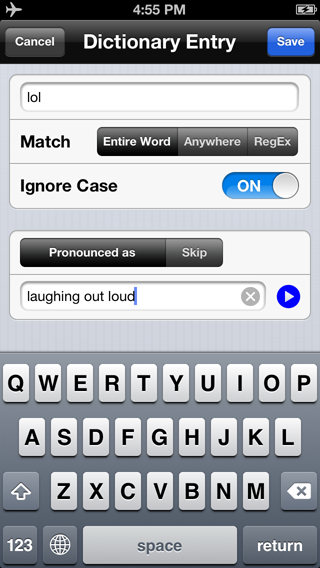
http://www.voicedream.com/wp-content/uploads/2013/06/PronunciationDictionary.png
Pronunciation Dictionary
Personal Pronunciation Dictionary
Don’t like how a voice pronounces a word? Want to skip repeating header text in a PDF document? Release 2.8 introduces a powerful personal pronunciation dictionary. You can tell the speech engine to pronounce a word as if it’s a different word. For example, “lol” can be pronounced as “laughing out loud,” or “MAD” as “M.A.D”, spelling out the acronym rather than saying it as a word. And you can skip any text so they’re not spoken at all.
For technically sophisticated users, I offer you Regular Expression or RegEx, a way to express any pattern in text. For example, to skip the chapter-verse numbers in the Bible, you would define a rule to skip RegEx “[0-9]+:[0-9]+”. What you can do with RegEx is limitless.
Each language has its own dictionary, and the pronunciation rules work regardless which voice you use, whether the voice is from Acapela or NeoSpeech. If you use TTS more than a few minutes a day, you’ll be very glad to have this feature.
Configurable Navigation
The other major feature is Configurable Navigation. Version 2.8 introduces a concept called “Navigation Unit,” which can be set to Sentence, Paragraph, Page, Chapter, Bookmark, Highlight, 15, 30, or 60 seconds – basically all important markers in text. In the previous version, the rewind and fast forward buttons go backward or forward by 30 seconds. In the new version, they move the speech cursor backward or forward by any Navigation Unit you set. For example, you can go to the next page in a PDF document or DAISY eBook. Or, go through all your highlighted text one by one. And you can set Navigation Unit on the fly by tapping on the rewind or fast forward button and hold.
If you assign rewind and fast forward to the remote control buttons on your headset, you can move around the text without touching your device. Or, you can swipe left or right with two finger and they’re the same as rewind and fast forward. How cool is that!
Speaking of gestures, I added a gesture that VoiceOver users have long enjoyed: Double-finger double tap, which is the same as the Play-Pause button. Now you can Play or Pause without exiting full screen.
Customers asked to be able to customize their reading experience by setting different speech rates easily: You might want to listen to a book in your native language faster than in a foreign language, and a scientific paper should be read more slowly than a popular novel. In the new release, you can set a default speech rate for each voice, and you can override defaults by setting a speech rate for each article or book. You can adjust the pitch and volume for each voice, too!
Better Support for Visual Reading
Voice Dream Reader has always supported both visual reading and voice reading and mixing them in a natural and fluid way. The features I mentioned thus far help create a better voice reading experience, but I haven’t forgotten about visual readers. I added a Scroll by Page mode (as opposed to free scrolling), increased the maximum font size to 80, added the option to turn off Word or Line highlighting. And it’ll remember the visual location where you left off in addition to the speech location, so when you open it next time it’ll go right to the text you were looking at before.
Here’re the rest of the new features in this release:
* Footer to indicate and set page, percent, chapter, and Navigation Unit.
* Sort by Date, Title, Author and Size for each folder.
* New Chinese and Japanese voices from NeoSpeech.
And as always, existing customers get these new features for free.
In a little more than a year, Voice Dream Reader has come a long way from the early days of being a simple text “player” with one voice. With your support and encouragement, Voice Dream Reader will continue to get better. Please email me with your comments and ideas for improvements. I love to hear from you.
Contact Us:
Support: support@voicedream.com
General: winston@voicedream.com
Twitter: http://twitter.com/VoiceDreamApp
Press Contact:
Email: media@voicedream.com
That’s it from me for this week.
If you would like to become a member of my CCB Mysteries chapter you can do so for the price of $10 annually and in return you will receive unlimited access to either of the following libraries.
Recipes –
http://www.donnajodhan.com/library-recipes.html
Audio mysteries for all ages –
http://www.donnajodhan.com/library-audio-mysteries.html
Or you can subscribe to both for the price of $20 annually.
Now you can subscribe to “‘Let’s Talk Tips”‘ which is my monthly resource for the most current and reliable informational tips available in the areas of Technology, Nutrition, Media, Business, and Advocacy.
To contact me, send me an email at info@sterlingcreations.ca and I’ll be happy to respond.
Have yourselves a great day and see you next week.
Donna
CCB Tech Articles, Donna’s Low Tech Tips, tactile screen protector, July 22, 2019
Sorry, this tip is a little late.
July 22, 2019
Meet the tactile screen protector
Hi there! It’s Donna and thank you for allowing me to come into your inbox.
Today, I’d like to talk about the tactile screen protector.
Let’s meet this product.
Meet the tactile screen protector
I met this very interesting product a few years ago and I am so happy that I have managed to make friends with it. I am not disappointed as this product helps me to be more agile on my iPhone’s screen and makes things faster and easier for me.
What is this product all about? Well, please read on.
This is one of the simplest but most useful products that I have come across in a very long time. Here is how it works. Just take the card of dots and paste it on the screen of your I device. There is a separate screen protector for each device. The dots enable a blind person to successfully and easily navigate the screen. The dots are strategically positioned so that with a wee bit of learning a blind person can easily navigate to where they need to go without too much difficulty.
Once a blind person gets the hang of where to go and how to navigate using these precious little dots, then the rest is so very easy. It is not too difficult to get used to and you can access whatever you want with just one move and it saves you the frustration of having to navigate all over the place.
This is a terrific invention and whoever thought of this concept should be heartily congratulated. I bought my tactile screen protectors for my iPhone and Ipad from the AT Guys in Michigan.
Just go out there and make friends with the tactile screen protector.
That’s it from me for this week.
If you would like to become a member of my CCB Mysteries chapter you can do so for the price of $10 annually and in return you will receive unlimited access to either of the following libraries.
Recipes –
http://www.donnajodhan.com/library-recipes.html
Audio mysteries for all ages –
http://www.donnajodhan.com/library-audio-mysteries.html
Or you can subscribe to both for the price of $20 annually.
Now you can subscribe to “‘Let’s Talk Tips”‘ which is my monthly resource for the most current and reliable informational tips available in the areas of Technology, Nutrition, Media, Business, and Advocacy.
To contact me, send me an email at info@sterlingcreations.ca and I’d be happy to respond.
Have yourselves a great day and see you next week.
Donna
CCB Tech Articles, Donna’s Low Tech Tips, Privacy Protection, July 8, 2019
July 8, 2019
Privacy protection
Hi there! It’s Donna and thank you for allowing me to come into your inbox.
Today, I’d like to introduce you to my tip on privacy protection.
Privacy protection
We are constantly striving to protect ourselves from scams and scammers, but most of all we need to ensure that our privacy, confidentiality, and independence are kept safe from prying eyes and those who thrive on destroying our right to these precious commodities.
Applying for health cards
This time, and if you do not have a trusted person to help you, give a call to your provincial MPP’s office.
If you do not know their number, then follow these steps.
Phone 1800 622 6232 and ask for the number of your Federal MP.
Upon obtaining this number call it and ask for the number of your provincial MPP.
Then call this number and explain what you are attempting to do.
Tell them that you are vision impaired and that you need assistance to obtain your health card.
Tell them exactly what you need; you need to know what documentation you need to take, where to go, and if possible to find someone who can go with you if you do not have a trusted person to go with you.
That’s it from me for this week!
If you would like to become a member of my CCB Mysteries chapter you can do so for the price of $10 annually and in return you will receive unlimited access to any of the following libraries.
Recipes – A collection of hard to find recipes
Audio mysteries for all ages – Comfort listening any time of the day
Home and garden – A collection of great articles for around the home and garden
Or you can subscribe to all 3 for the price of $30 annually.
Visit http://www.donnajodhan.com/subscription-libraries.html
To contact me, send me an email at info@sterlingcreations.ca and I’d be happy to respond.
Have yourselves a great day and see you next week.
Donna
BlindShell, Simple, intuitive and accessible phones for visually impaired
Date Saved: 7/5/19, 1:50 PM
Source: https://www.blindshell.com/
Note: Check above and below links for videos about this device.
New BlindShell Classic
Over the past few years, we have sold phones for the visually impaired to thousands of customers across 20 countries. We have worked to create a phone that would be durable, stylish, and most importantly, easy to use for the blind and visually impaired. Based on the feedback and input from our users, we introduced the BlindShell Classic last year. This phone encompasses the best of what the world of mobile phones for the blind offers.
• Carefully designed keypad with comfortable buttons.
• Voice Control or tactile keypad for the simplest to use phone yet.
• Optimized shape, which perfectly fits your hand.
• Lifetime updates and fantastic support.
Blindshell Classic
• Single button quick dial
• SOS emergency button
• Quick menu navigation by shortcuts
• FM radio
• Calendar
• E-mail
• Voice control
• Text dictation
• Object tagging
BLINDSHELL 2 BAROQU
• Voice control
• Text dictation
• Object tagging
• Color recognition
• Mp3 and audio-book player
• GPS position
• Games
• WhatsApp
• Facebook Messenger
WHAT SEPARATES BLINDSHELL FROM THE REST?
First and foremost, it’s been designed to be helpful. No frills. We’ve listened to our customers and honed its features to be simple. The BlindShell Classic caters to the actual needs of visually impaired users. The physical keypad and large assortment of applications are designed and chosen specifically for the blind user’s needs.
It is truly intuitive to use. You can either use the keypad or control your phone by voice. And yes, you’ll figure out how to operate it in less than 30 minutes.
Lastly, we wanted to develop a phone which will last. That’s why we carefully chose the BlindShell Classic design to be practical, sturdy, and easy to use. The lifelong free updates give peace of mind that you will be happy with your purchase for years to come.
Demonstration Video Re-posted from Carrie Morales, Live Accessible:
Hey Everyone,
The BlindShell Classic Phone is coming out to the US and it’s a phone that’s specifically designed for the blind and visually impaired. It’s a great option for someone looking for a phone that has physical buttons, very easy to use, and totally accessible. Here’s a review I did of the phone if anyone is interested! https://youtu.be/XSE8grhy_8g
Carrie Morales
Website: LiveAccessible.Com
YouTube: Live Accessible
Instagram: @LiveAccessible
Twitter: @LiveAccessible
Email: carrie@liveaccessible.com
*Picture Description: Text reads Live accessible: blindness or Low Vision does not define or limit you on a blue background
CCB Tech Articles, Donna’s Low Tech Tips, Apps Round-up, July 1, 2019
July 1, 2019
Apps round up
Hi there! It’s Donna and thank you for allowing me to come into your inbox.
A belated happy Canada Day to everyone!
Today, I’d like to introduce you to my apps roundup.
Enjoy!
1. Cardhop (iOS, US$3.99)
Until now, managing and interacting with your contacts has been a real frustration. Cardhop’s magical parsing engine is incredibly intuitive, letting you search, add, edit, and interact with your contacts using a simple sentence!
Just type in “John G” and John’s card will instantly appear. Or enter “Sarah Smith sarah@cardhopapp.com” and Cardhop will add a new contact to Sarah’s card. Or type in “call Michael S” and Cardhop will instantly start a phone call.
SEARCH, ADD, EDIT, AND INTERACT WITH YOUR CONTACTS LIKE NEVER BEFORE
* Tap on the Cardhop search field
* Type in the details for your contact
* That’s it!
FEATURES
* A beautiful and simple contacts app, designed exclusively for your iPhone and iPad
* Instantly works with your existing iOS contacts, there’s nothing to configure
* Groups: quickly toggle contact groups with a tap
* Notes: a convenient and powerful way to add notes to your contacts, helping you to strengthen your relationships
* Recents: quickly interact with your recent contacts
* Birthdays: receive birthday notifications, instantly see upcoming birthdays, and easily send a wish on their special day
* iOS widget to quickly access your favorite contacts
* Siri Shortcuts
* Full accessibility and VoiceOver support
* Dark and light themes
* And much, much more!
POWERFUL ACTIONS
* Quickly interact with your contacts with the following actions: Call, Copy, Directions, Email, FaceTime, FaceTime Audio, Facebook Messenger, Large Type, Message, Skype, Telegram, Twitter, URL, Viber, and VoIP
* Simply enter an action or abbreviation (which you’ll find in the Help Book by entering “?” or “help”) followed by your contact’s name and Cardhop will handle the rest
* Even better, some actions are flexible. For example, you can add a subject to an email by entering “email Kent Lunch tomorrow?” and the email including the subject will instantly appear, ready to go!
* Customizable quick actions are also available per contact, allowing for single-tap actions
Cardhop — the contacts app you’ll actually want to use.
Current Version: 1.0.1 (March 30, 2019)
Read Cardhop’s AppleVis App Directory entry for more information
https://www.applevis.com/apps/ios/productivity/cardhop
Visit Cardhop’s App Store page
https://itunes.apple.com/us/app/cardhop/id1448744070?mt=8&at=11l4LS
Read about the Mac version of Cardhop on AppleVis.
https://www.applevis.com/apps/mac/productivity/cardhop
2. WaterMinder® (iOS, US$4.99)
Get help with WaterMinder®, an easy, intuitive app to track your water intake. Based on your body weight (or your personal goal), WaterMinder will remind you to drink water to reach your daily goals. By seeing current water fill visually and in percents you will instantly know how well you are hydrated!
Keeping track of your daily water intake needs and making sure your body is well hydrated is not an easy task in todays busy world. Let WaterMinder help you!
Main Features
* Apple Watch app
* Today Widget
* iMessage Stickers
* Clean visual view of your current water fill
* Simple, quick and easy to use interface (just tap on 1 icon and a menu opens with your options to log/track your water intake)
* Pre-defined cups for quick tracking
* Create custom cups (size, icon, color, drink type)
* Create unlimited custom reminders
* History and Graph, see your progress
* US oz, UK oz, L and ML units
* Earn and Share your Achievements
* Free guide to drinking water
Stay healthy, and drink more water – hydrate yourself!
Current Version: 3.7.8 (January 28, 2019)
Read WaterMinder®’s AppleVis App Directory entry for more information
https://www.applevis.com/apps/ios/health-and-fitness/waterminder
Visit WaterMinder®’s App Store page
https://itunes.apple.com/us/app/waterminder/id653031147?mt=8&at=11l4LS
All recent app entries posted to AppleVis can be found at:
iOS http://www.applevis.com/apps/latest?type=ios_app_directory
Mac http://www.applevis.com/apps/latest?type=mac_app_directory
Apple Watch http://www.applevis.com/apps/latest?type=apple_watch_app_directory
Apple TV http://www.applevis.com/apps/latest?type=apple_tv_app_directory
That’s it from me for this week.
If you would like to become a member of my CCB Mysteries chapter you can do so for the price of $10 annually and in return you will receive unlimited access to either of the following libraries.
Recipes –
http://www.donnajodhan.com/library-recipes.html
Audio mysteries for all ages –
http://www.donnajodhan.com/library-audio-mysteries.html
Or you can subscribe to both for the price of $20 annually.
Now you can subscribe to “‘Let’s Talk Tips”‘ which is my monthly resource for the most
current and reliable
informational tips available in the areas of Technology, Nutrition, Media,
Business, and Advocacy.
To contact me, send me an email at info@sterlingcreations.ca and I’d be happy to respond.
Have yourselves a great day and see you next week.
Donna
CCB extends our deepest condolences to the family of Chris Stark, 1947-2019
On behalf of Louise Gillis, CCB National President:
To the Stark Family,
On behalf of myself as National President and the Board of Directors of the Canadian Council of the Blind (CCB) I extend our deepest condolences to Marie, Jeffery and Chantal – their spouses and as well to the grandchildren. We all have been shocked by Chris’s sudden passing. Chris has made major contributions to blind and partially sighted Canadians for which we are truly grateful and will not be forgotten.
Our thoughts and prayers are with you as you go through this very difficult time.
Sincerely,
Louise Gillis
National President
The Canadian Council of the Blind
Chris Stark (1947-2019)
Christopher (Chris, Bobo) James Stark, born November 4, 1947, passed away peacefully on June 3rd, 2019, surrounded by his ever-loving family. He is survived by his loving wife of 46 years Marie, children Jeffrey and Chantal, grandchildren Rowan, Abigale and Nathan, daughter-in-law Jenn and son-in-law John, and faithful guide dog Banksy.
Chris’s tireless passion for advocating for and improving the lives, experiences and independence of persons with disabilities was the cornerstone of his personal life and career, focusing mainly in travel and transportation, telecommunications, banking services and guide dog access. One of his proudest achievements was the implementation of accessible automated banking machines with audio features which can be used independently by customers with disabilities including persons who are blind. He earned several awards including a letter of commendation from Queen Elizabeth II, the Governor General 125th Anniversary of the Confederation Commemorative Medal, and the Queen’s Golden Jubilee Medal. He authored several articles and books including a book about his experiences as a child at the Halifax School for the Blind (HSB), and another about the history of HSB. More information about his life and achievements is available at: His Website – http://bobo.blackspheretech.com/
Donations in lieu of flowers can be made to The Canadian Guide Dogs for the Blind.
His life will be celebrated on June 16th, 2019 from 2-4pm at the Tweedsmuir on the Park Clubhouse at 21 Kinmount Pvt in Kanata.
Please leave comments and notes at:
Yes, Alexa, Siri, and Google are listening — 6 ways to stop devices from recording you by Janet Perez, Komando.com
Yes, Alexa, Siri, and Google are listening — 6 ways to stop devices from recording you
Janet Perez, Komando.com
Full text of the article follows this URL:
Seems like we owe the tinfoil hat club a big apology. Yes, there are eyes and ears everywhere in just about any large city in the world. Here in the good,
old U-S-of-A, our smartphones, tablets, computers, cars, voice assistants and cameras are watching and listening to you.
We don’t know what is more troubling — that these devices keep track of us or that we shrug our shoulders and say, “Oh well?” That attitude of surrender
may stem from an overwhelming sense of helplessness. ”
Technology is everywhere.
Why fight it?”
Truth is, it’s not a fight. It’s a series of tap-or-click settings, which we’ll walk you through.
You can take control of what your devices hear and record, and it’s not that hard. We have 6 ways to help you turn off and tune out Alexa, Siri, and Google,
as well as smartphones, third-party apps, tablets, and computers.
How to stop Alexa from listening to you
Weeks after the public discovered that Alexa, and by extension Echo devices
are always listening,
Amazon announced a
new Alexa feature that’s already available.
It allows you to command the voice assistant to delete recent commands. Just say, “Alexa, delete everything I said today.”
Sounds great, but there’s still the problems of Alexa always listening and your old recordings. Let’s tackle the old recordings first. Unless the delete
command is expanded to include all recordings, you still have to remove old files manually. Here’s what to do:
list of 4 items
- Open the Alexa app and go into the “Settings” section.
- Select “History” and you’ll see a list of all the entries.
- Select an entry and tap the Delete button.
- If you want to delete all the recordings with a single click, you must visit the “Manage Your Content and Devices” page at amazon.com/mycd.
list end
As for Alexa and Echo devices always listening, well you could turn off each of the devices, but then what’s the point of having them? The real issue is
that we discovered Amazon employees around the world are listening to us and making transcriptions.
Here’s how to stop that:
list of 7 items
- Open the Alexa app on your phone.
- Tap the menu button on the top left of the screen.
- Select “Settings” then “Alexa Account.”
- Choose “Alexa Privacy.”
- Select “Manage how your data improves Alexa.”
- Turn off the toggle next to “Help Develop New Features.”
- Turn off the toggle next to your name under “Use Messages to Improve Transcriptions.”
list end
For extra privacy, there’s also a way to mute the Echo’s mics. To turn the Echo’s mic off, press the microphone’s off/on button at the top of the device.
Whenever this button is red, the mic is off. To reactivate it, just press the button again and it will turn blue.
How to stop Siri from recording what you say
Alexa isn’t the only nosey assistant. Don’t forget the ones on your iPhones and Androids. On your iPhone,
“Hey Siri” is always on
waiting to receive your command to call someone or send a text message, etc. Apple says your iPhone’s mic is always on as it waits for the “Hey Siri”
command, but swears it is not recording.
If it still makes you nervous, you don’t have to disable Siri completely to stop the “Hey Siri” feature. On your iPhone, go to Settings >> Siri & Search >>
toggle off “Listen for Hey Siri.”
Note: “Hey Siri” only works for iPhone 6s or later. iPhone 6 or earlier has to be plugged in for the “Hey Siri” wake phrase to work.
How to delete your recordings from Google Assistant
Google Assistant has the
“OK Google” wake-up call,
but the company introduced the My Account tool that lets you access your recordings and delete them if you want. You can also tell Google to stop recording
your voice for good.
Here’s how to turn off the “OK Google” wake phrase: On Android, go to Settings >> Google >> Search & Now >> Voice and turn “Ok Google” detection off.
How to control third-party apps that record you
Even if you do all these steps for your Apple and Android devices, third-party apps you download could have their own listening feature. Case in point:
Facebook (although it denies it. But it’s still a good practice to check to see if third-party apps are listening).
Here’s how to stop Facebook from listening to you:
If you are an iPhone user, go to Settings >> Facebook >> slide the toggle next to Microphone to the left so it turns from green to white.
Or, you can go to Settings >> Privacy >> Microphone >> look for Facebook and slide the toggle next to it to the left to turn off the mic. You can toggle
the mic on and off for other apps this way, too.
For Android users go to Settings >> Applications >> Application Manager >> look for Facebook >> Permissions >> turn off the mic.
Tricks to disable screen recorders on tablets
Certain Apple iPads have the phone’s “Hey Siri” wake-up command feature. They are the 2nd-gen 12.9-inch iPad Pro and the 9.7-inch iPad Pro. Other iPad
and iPad Touch models have to be plugged in for the “Hey Siri” wake phrase to work.
The bad news for privacy seekers is that iPads come with a screen recording feature that also records audio. It may pose issues in terms of both privacy
and security.
You can disable the screen recording feature through another feature, “Screen Time”:
list of 4 items
- Open the Settings app, and then tap Screen Time. On the Screen Time panel, tap “Content & Privacy Settings.”
- Tap “Content Restrictions.” If you don’t see this option, turn on the switch next to “Content & Privacy Restrictions” to unhide it.
- Under “Game Center,” tap “Screen Recording.”
- Tap “Don’t Allow” and then exit the Settings app. The screen recording control should no longer work, even if it is enabled within the Control Center.
list end
Screen Time is available in iOS 12 and above. If you are still using iOS 11 or iOS 10 on your iPhone or iPad, the above steps can be found under Settings
>> General >> Restrictions.
Android tablets also can record video and audio. However, you have to use a third-party app to disable the camera.
On your Android device, go to the Play Store, then download and install the app called “Cameraless.”
list of 5 items
- Once installed, launch the app from your app drawer.
- On the app’s main menu, tap the option for “Camera Manager On/Off.” By default, the camera manager is set to “Off,” so you need to enable the app first
as one of your device administrators before you can switch it “On.”
- Once your camera manager is “On,” just tap the option for “Disable camera” then wait until the notice disappears on your screen.
- Once you’re done, just close the app then go to your tablet’s camera icon.
- If successfully disabled, you’ll immediately get a notice that your device camera has been disabled due to security policy violations. This is the notice
that you’ll get from the “Cameraless” app. If you click “OK” you’ll be taken back to your home screen.
list end
Desktop and laptops are watching and listening too
Computer monitor and keyboard
We’ve been warned for years about hackers taking control of cameras on your computer screen. No need for elaborate instructions on disabling and enabling
the camera. Just slap a sticker on it and only remove it if you have to use Skype. Sometimes the best solutions are the simplest ones.
Unfortunately, you do have to root around your computer a bit to turn off mics.
For PCs running Windows 10, the process is actually quite painless. Right-click on the “Start Button” and open “Device Manager.” In the “Device Manager”
window, expand the audio inputs and outputs section and you will see your microphone listed as one of the interfaces. Right-click on “Microphone” and select
“Disable.” You’re done.
For Macs, there are two methods depending on how old your operating system is. For Macs with newer operating systems:
list of 5 items
- Launch “System Preferences” from the Apple menu in the upper left corner.
- Click on the “Sound” preference panel.
- Click on the “Input” tab.
- Drag the “Input volume” slider all the way to the left so it can’t pick up any sound.
- Close “System Preferences.”
list end
If you have an older operating system, use this method:
list of 5 items
- Launch the “System Preferences.”
- Click on “Sound.”
- Click on the “Input” tab.
- Select “Line-in.”
- Close System Preferences
list end
Now you know how to take control of your devices and how they listen and record you. It’s a pretty simple way to get your privacy back, at least some of
it.
Stop Facebook’s targeted advertising by changing your account settings
Let me be frank: I only keep a Facebook account to engage with listeners of my national radio show. I don’t use my personal account. I stepped away from
the social media platform, and I never looked back.
Click here to read more about Facebook advertising.
Please share this information with everyone. Just click on any of the social media buttons on the side.
list of 14 items
- Fraud/Security/Privacy
- Alexa
- Amazon
- Android
- Apple
- Echo
- iPad
- Mac
- PC
- Privacy
- Security
- Siri
list end
_._,_._,_
Groups.io Links:
You receive all messages sent to this group.
View/Reply Online (#18797) | Reply To Group | Reply To Sender | Mute This Topic | New Topic
Your Subscription | Contact Group Owner | Unsubscribe [albert.gtt@ccbnational.net]
_._,_._,_
CCB Tech Articles, Donna’s Low Tech Tips, ReadEasy Move, May 27, 2019
May 27, 2019
Meet the ReadEasy Move
Hi there! It’s Donna and thank you for allowing me to come into your inbox.
Today, I’d like to talk about the ReadEasy Move.
Let’s meet this product.
Meet the ReadEasy Move
Well folks, here it is. Another alternative for you to check out!
Yet another portable scanner for you to go out there and make friends with. This is good, exciting, and a must read for you.
Please see below.
http://www.gwmicro.com/Reading_Systems/ReadEasy_Move/
The ReadEasy Move
Has Arrived
ReadEasy Move is an easy to use all-in-one portable device that reads to you.
ReadEasy Move will read practically any printed text out loud within seconds, in a clear human sounding voice.
Simply line up your document or book against the right hand edge of ReadEasy Move’s case, press the “Capture” button and within a few seconds your print material is being read out loud to you.
Who is the ReadEasy Move For?
ReadEasy Move is for anyone who needs quick, easy and accurate access to printed material.
ReadEasy Move has an intuitive and tactile design that makes it an ideal solution for people with all levels of vision from low vision to total blindness.
The one button operation of the ReadEasy Move makes it suitable for people of all ages whether you are 4 or 104!
ReadEasy Move could be the perfect reading system for you if:
* You find it difficult to read with a magnifying glass.
* You would like to be more independent and be able to read your own documents (mail, newspapers, bills, etc.).
* You have a learning disability such as dyslexia and benefit from listening to text read to you out loud.
* You find reading with a video magnifier (CCTV) too difficult because you can’t fit enough characters on the screen to read at your desired pace.
* You find the constant movement of text on a video magnifier’s screen makes your eyes fatigued or gives you a nauseous feeling.
* You already have a reading machine but wish it was faster, more accurate and had more features.
* You have a degenerative eye condition and would like a system that is suitable both now and for the future.
What are ReadEasy Move’s Benefits?
ReadEasy Move features many benefits over other scanner and digital capture reading machines including:
ReadEasy+ capturing text from a letter size document image:
http://www.gwmicro.com/images/RE-Move-Letter-Cropped-w1000.jpg
Ease of use: ReadEasy Move is so easy to use. A single button press is all it takes to start reading your document. The six tactile in built controls are all that are required to access ReadEasy Move’s main features.
* Accuracy: ReadEasy Move uses the latest camera and recognition technology to ensure it is as accurate as possible, even on complicated newspaper layouts or curved surfaces like cans of food.
* Quality of speech: Using the latest natural sounding voices, together with a custom designed, integrated, 6 watt RMS stereo speaker system, there is no better sounding reading machine.
* Speed: ReadEasy Move reads your document to you in just a few seconds, (typically 4-6), which means less waiting and more reading!
* Stylish and practical design: A sleek, all aluminum case together with a detachable camera, allows the ReadEasy Move to fit anywhere in your home and can be easily transported when on the go with the included custom carrying case.
* Footprint: Occupying just 7.6 x 3.1 inches, (192 x 78 mm), of table area, ReadEasy Move is extremely compact and 75% smaller than the previous versions.
* Weight: ReadEasy Move is the world’s lightest free standing reading machine at just 4 lbs., (1.80 kg), making it easy to take with you or pack away.
* Versatility: Read almost any surface, flat or round. ReadEasy Move’s camera allows it to capture deep into the spines of books without flattening them, as well as reading 3D objects like cans or prescription bottles.
* Low Vision Pack: If you benefit from reading magnified text in high contrast then the ReadEasy Move with the Low Vision Pack is just for you. The ReadEasy Move with Low Vision Pack offers additional features that benefit users with low vision including being able to output captured text to a monitor so you can see the text as it is read aloud.
* Advanced Feature Packs available: The Optional Keypad Feature Pack, Low Vision Pack and Low Vision Touch Pack greatly increases the capabilities of each device (e.g. saving, importing, exporting, bookmarking documents and large print text output to an interactive touch screen).
ReadEasy Move Features
ReadEasy Move lets you read more easily than ever before.
The ReadEasy Move is Easy to Setup
Image of the ReadEasy Move simple three step setup process. Image displays
ReadEasy Move with camera disconnected, camera connected and camera connected and opened for use.
ReadEasy Move is designed to be simple to set up and pack away. ReadEasy Move features a unique magnetic quick release camera system allowing the unit to be far more compact and lightweight. Simply placing the camera into its dock on the base unit automatically locates it into the correct position. Once the camera system is docked into place, pull the camera head out towards you. To pack away, just complete the same steps in reverse and place the unit in the included custom carrying case!
The ReadEasy Move is Easy to Use
With a specially designed tactile keypad, comprised of just 6 buttons, ReadEasy Move is incredibly simple to operate. From left to right, the tactile and uniquely shaped buttons include: speech faster, speech slower, previous sentence, play/pause, next sentence and capture.
That’s it from me for this week.
If you would like to become a member of my CCB Mysteries chapter you can do so for the price of $10 annually and in return you will receive unlimited access to either of the following libraries.
Recipes –
http://www.donnajodhan.com/library-recipes.html
Audio mysteries for all ages –
http://www.donnajodhan.com/library-audio-mysteries.html
Or you can subscribe to both for the price of $20 annually.
Now you can subscribe to “‘Let’s Talk Tips”‘ which is my monthly resource for the most current and reliable
informational tips available in the areas of Technology, Nutrition, Media,
Business, and Advocacy.
To contact me, send me an email at info@sterlingcreations.ca and I’d be happy to respond.
Have yourselves a great day and see you next week.
Donna
GTT Edmonton Summary Notes, May 13, 2019
Summary Notes
GTT Edmonton Meeting May 13, 2019
The most recent meeting of the Get Together with Technology (GTT) Edmonton Chapter was held May 13 at 7pm at Ascension Lutheran Church 8405 83 Street in Edmonton.
12 people attended.
Reading Tip: These summary notes apply HTML headings to help navigate the document. With screen readers, you may press the H key to jump forward or Shift H to jump backward from heading to heading.
May Topic – Independent Living Low Tech Aids
Low Tech Aids Demo
Stephannie Leach, Independent Living Skills Specialist at Vision Loss Rehab Alberta (a Division of CNIB), demonstrated some inexpensive low tech aids and free apps that can be used in the home to promote independent living. These devices included:
• Color Reader is a hand-held device that can be placed near an object such as an item of clothing and it will speak its color.
• Level Indicator: Place it on the edge of a cup, pour in liquid and it will beep when the cup is full.
• Talking Kitchen Scale to weigh small items and ingredients.
• Talking Measuring Cup: It announces the amount of liquid you pour into the cup. Buttons to select water, oil, or milk. 1 Liter capacity. Detaches from its base for washing.
• Pen Friend is a talking label device. IT comes with 250 labels that can be attached to items such as clothing, containers, file folders, CDs, whatever you wish. Speak a description of the item to the Pen Friend and the next time you touch the label with the Pen Friend it will speak back what you said. Clothes washing does not damage the label. Pen Friend can also play MP3 files. It also comes with magnets. Place a talking label on a magnet and it can then be reused on items such as canned food.
• Talking Bathroom Scale with a setting for pounds or kilograms.
• Reminder Rosie is a handheld device that you can talk to. You can ask it the time, tell it to remind you about appointments or things to do, all just with your voice and no computer.
• Talking watches and clocks.
• Seeing AI App for iPhone: This is a free app from Microsoft that you can download from the app store. It helps with many tasks including speaking colors, reading out loud short text such as package labels and envelopes, reads package bar codes, reads out loud longer paper documents, identifies Canadian, U.S., UK currency notes, identifies faces, and more.
CNIB STEP Program and Retail Store
The above items can be subsidized through the CNIB STEP program for Alberta CNIB clients. Contact your local Edmonton CNIB office at 780.488.4871 to learn more or visit the office at #600, 11150 Jasper Avenue. CNIB also has a retail store at this address where the above items can be viewed and purchased.
Home Visit by Stephannie Leach
CNIB clients can also come into the Edmonton office to see these devices at the CNIB store or they can call to book an appointment with Stephannie to come to their home to help them with their independent living skills. You may also contact Stephannie by email at Stephannie.Leach@vlrehab.ca
Next Meeting (Monday June 10, 2019 at 7pm)
• Carrie and Lyle will explain the accessibility settings built into Windows 10 that make it easier for low vision users to use Windows 10 computers.
• As always, for help with technology bring your devices and/or questions to the meeting.
Meeting Location and Logistics
• Ascension Lutheran Church 8405 – 83 Street NW, Edmonton.
• We meet in the basement hall. There is elevator access.
• Enter the church from the back door. There is parking at the back.
• Meetings are every second Monday of the month at 7pm.
• If you have someone helping you your assistant is welcome to remain for the meeting.
GTT Edmonton Overview
• GTT Edmonton is a chapter of the Canadian Council of the Blind (CCB).
• GTT Edmonton promotes a self-help learning experience by holding monthly meetings to assist participants with assistive technology.
• Each meeting consists of a feature technology topic, questions and answers about technology, and one-on-one training where possible.
• Participants are encouraged to come to each meeting even if they are not interested in the feature topic because questions on any technology are welcome. The more participants the more talent and experience we will have to help each other.
• There are GTT groups across Canada as well as a national GTT monthly toll free teleconference. You may subscribe to the National GTT blog to get email notices of teleconferences and notes from other GTT chapters. Visit:
http://www.gttprogram.wordpress.com/
To subscribe, activate the “Follow “link at the bottom of that web page to enter your email.
National GTT Email Support List
CCB sponsors a GTT email support list to provide help and support with technology for blind and low vision Canadians. To subscribe to the email list, send an empty email to:
GTTsupport+subscribe@groups.io
[End of Document]
CCB Tech Articles, Donna’s Low Tech Tips, scam alert, May 20, 2019
May 20, 2019
A scam alert
Hi there! It’s Donna and thank you for allowing me to come into your inbox.
Today, I’d like to introduce you to my scam alert.
A scam alert
You have been left in someone’s will
If you receive an email telling you that you have been left in someone’s will;
Someone’s name that you do not recognize;
Just simply delete this email.
It may appear to you as being very real and you may want to investigate further
but do not do so.
If you make the mistake to reply, then guess what?
Your email address will be captured and the rest is now history.
Just take a moment to think of it! You get an email out of the blue from someone telling you that you have been left a large sum of money by someone that you do not even know let alone that you have never even met! In the general scheme of good luck; can this really be expected to be true? Not really!
These emails are meant to grab your attention and get you to make that wee slip to respond and then bingo! You have just opened wide your virtual door to the one lurking out there just waiting to pounce. These emails usually originate from either Europe or Africa. So just be aware.
That’s it from me for this week.
If you would like to become a member of my CCB Mysteries chapter you can do so for the price of $10 annually and in return you will receive unlimited access to either of the following libraries.
Recipes –
http://www.donnajodhan.com/library-recipes.html
Audio mysteries for all ages –
http://www.donnajodhan.com/library-audio-mysteries.html
Or you can subscribe to both for the price of $20 annually.
Now you can subscribe to “‘Let’s Talk Tips”‘ which is my monthly resource for the most current and reliable
informational tips available in the areas of Technology, Nutrition, Media,
Business, and Advocacy.
To contact me, send me an email at info@sterlingcreations.ca and I’d be happy to respond.
Have yourselves a great day and see you next week.
Donna
GTT National Conference Call Summary Notes, CELA Library Update, May 8, 2019
GTT National Conference Call.
An Initiative of the Canadian Council of the Blind
Summary Notes
May 8, 2019
Theme: CELA Library Update
Michael Ciccone who is the executive director of CELA joined us to provide updates and answers to our questions.
Note: CELA is updating the web site continually so these notes may be out of date if you are reading them after May 2019.
On the main page of the CELA web site
you will find the latest updates, service alerts, and what they are working on now.
Michael thanked everyone for their patience and acknowledges that this has not been the smooth transition they would have wished for.
CELA continues to work on improving the searching feature. At the time of the call, searching resulted in receiving way too many search results. Michael assured us that by May 9, 2019 the searching feature would be greatly improved. This was the case when Kim Kilpatrick tested it on Thursday May 9, 2019. Fewer results came up and it was more accurate.
Michael is aware that the searching needs to improve and will include key words and other ways of searching as well.
People can now download books in daisy zip format and for the most part direct to player. Some people are still having trouble with direct to player.
Cd’s and single use braille are being sent out as well.
People have access now to all CELA and bookshare titles for the most part. New titles are being added.
Recently, the focus has been on improving the search functionality which they have heard a lot of complaints about. Michael brought in someone to assist with this. In order to fix the search issues, they had to re-index the entire collection which did take time. Search filters and advanced search still needs to be implemented.
After the search is working well, the focus will be on improving the patron account information. Implementing the history, the setting of preferences, manage holds lists and update account information.
Another priority is getting the daisy text magazines back. They must build additional programming to do this.
CELA is hoping to have most of the site up and running by the summer. However, many of the issues they have encountered have been issues they did not foresee.
There is a known issue with getting direct to player books on the plextalk players. This is an issue with the company who makes plextalk. Plextalk has done nothing about it. Both CNIB and optilec have stopped selling their players for this reason. Nevertheless, they are hoping to get a resolution for this issue.
CELA has been contacting the patrons they know use plextalk and giving them some alternatives.
There was an issue with voiceover (the screen reader for IOS) that has been resolved.
Some of the bookshare titles that appeared are titles we should not have access to in Canada. And, another bookshare issue where duplicate titles are appearing. This means that the bookshare title might not be able to be downloaded successfully. Bookshare is working on this from their side too. Once everything is fixed, this will be a great and very accessible system.
This system will give CELA room to grow and allow them to add other library systems as they become available.
Bookshare is already working with other blindness libraries to improve their product and interaction. Michael is hoping that we continue to be patient (that is so appreciated) and continue to reach out and let CELA know our thoughts and ideas. The pace at which issues are being fixed has picked up over the past few weeks.
People expressed their appreciation for the update progress e-mails that we have been getting regularly.
Someone liked that the site is easier to use on smart phones.
All formats being in one record are appreciated.
The mobile site works well.
The New titles section will be restored when CELA is able to add the filter for new titles. That should happen within the next few weeks.
Michael will update us on this and any other major updates as they happen.
Michael will also investigate answers for the questions below and provide answers as he gets them.
Kim and Albert will share to the GTT list and blog.
- Will the bookshare new titles be updated as well as the cela titles?
- Michael will check. We may have an option for filtering the new titles lists.
Comment. the dialogue box that comes up after you press get it for the book does not always pop up.
Michael has made this a high priority.
Sometimes bookshare has several versions of a book. If you cannot download one, try downloading another one.
Comment. When you download a book into direct to player, there is no book description on the victor stream.
Michael will investigate.
Comment. There are some issues with bookshare download saying service error. Bookshare was contacted and this seems to be a humanware issue. There should be a victor stream software update in June which will correct this.
Michael suggested trying to download the bookshare books through CELA and see if this works better.
Publishers sign agreements with bookshare and they either say they will let international patrons have their books or not. About 90 percent of publishers in bookshare let us have them. May 8 Marrakesh treaty has passed so there may be an increase in books available.
Comment. The notification on the iPhone that says go to your downloads section, does not always show up or is not read automatically. Someone suggested that this is a voiceover and screen reader focus issue on all platforms.
Comment Someone is having a problem with downloads not showing up in the download section. Some people have also seen books that are much older in their list of holds or books on their shelf.
Michael wondered if It might be that the history feature once implemented will fix this. This seems to happen with direct to player books in dolphin reader.
Comment. Someone had an issue where CELA kept logging them out even when they were signed in.
Michael said that sometimes it is a personal account issue and you might have to call CELA help to fix your actual account.
Comment. Some people ended up downloading the same book 3 or 4 times because they did not get the notification. The new system is a bit of a learning curve as there is one extra step to download a book. Suggestion. Indicate all the known problems on the CELA front page?
Michael said that now, it would take a long time to get through the list of issues. It was further suggested that any major issues be put on the front page.
Suggestion. Make a download sound for when a book is downloading like NVDA does when it is downloading a software update.
Comment Several people have not been able to download books from CELA onto their stream direct to player.
Michael will check if this is a known issue.
There will be filters for recently added and publication date. Michael is waiting to see if both can be added for filters.
Question. Will CELA be added as a service under voicedream reader.
Michael would like to be able to do this.
Question Will we also be able to search more easily in voicedream reader and in dolphin easy reader? This will hopefully happen, but it is not top of the list. Michael will follow up on the voicedream search and adding as a service for voicedream. This would cut out some steps and would make it easier for people.
After the search, putting the magazines back is a very high priority. The magazines are ingested into bookshare and then they come back to CELA.
Suggestion Occasionally when you remove books from dolphin, it does not clear from site. Can you have a button on the new site to clear books?
Michael believes this is planned but will follow up. The staff from CELA are wanting to make sure we can do more ourselves.
Question Is easy reader good on android?
Maybe not as straight forward as on IOS but still works.
Question. Can we search for just bookshare books or just cela books? Could that be a filter? Will it be described as a bookshare book if you search for just direct to player? Nice to be able to tell within the record if it is direct to player bookshare or CELA.
Michael will investigate this. It was pointed out that Daisy text is pretty much always bookshare. Daisy audio is cela.
It was pointed out that Using the victor stream to search for bookshare books will go away once bookshare is integrated with CELA. Is that right? Bookshare is willing to let us stay with bookshare accounts until all is sorted out.
Once everything is working, can we still do a search through our victor stream? Michael will check if this is on the development list.
It was suggested that we change the filter searches from check boxes to radio buttons.
Hopefully, in future when searching you can just type in a name, term, author, and the search will be smart and provide the most relevant results.
Michael will investigate what will be included in our preferences. Now, each new search clears all preferences.
Suggestion when using screen readers and Screen navigation, raise the level of the heading for the search. Make the search heading level 1 and the filters heading level 2. Michael will pass this along. Suggestion Will cela be in touch with humanware for people to search just on the stream because people find this a very easy way to search. Now every search on the stream is now very streamlined and similar. Michael will check on this as well.
Suggestion. Build an API with CELA to allow people to search on the stream. Will CELA work with humanware to build an API for searching CELA with the stream? Michael will check into this.
A similar API or the same one could work to add CELA to voicedream reader.
There are people who do not use their computer at all but just search on the stream. That is a very important service to have.
CELA is Encouraging people to not get hard CD’s but to change to direct to player and downloading onto your stream and onto your easy reader app. CELA can also designate someone or add a designate to help you load your shelf. If it is all legal, that is okay. If CELA has a designate name, then CELA can contact the designate if there is any issue.
GTT National Conference Call Overview
- GTT National Conference Call is a monthly discussion group of the Canadian Council of the Blind (CCB).
- GTT National Conference Calls promote a self-help learning experience by holding monthly meetings to present and discuss new and emerging assistive technology.
- Each meeting consists of a feature technology topic, along with questions and answers about assistive technology.
- Participants are encouraged to attend each meeting even if they are not interested in the feature topic because questions on any technology are welcome. The more participants the better able we will be equipped with the talent and experience to help each other.
- There are GTT groups across Canada as well as an email distribution list where assistive technology questions are provided by participants. You may also subscribe to the National GTT blog to get email notices of teleconferences and notes from other GTT chapters. Visit:
There is a form at the bottom of that web page to enter your email.
National GTT Email Support List
CCB sponsors a GTT email support list to provide help and support with technology for blind and low vision Canadians. To subscribe to the email list, send an empty email to:
GTTsupport+subscribe@groups.io
[End of Document]
Alt-texts: The Ultimate Guide by Daniel Göransson
Author: Daniel Göransson
Date Written: Oct 14, 2017 at 5:00 PM
Date Saved: 5/14/19, 1:43 PM
This post contains everything you need to know about alt-texts! When to use them and how to perfectly craft them. By me, Daniel, a web developer with vision impairment who use a screen reader in my day-to-day life.
My experience of images on the web
I use a combination of magnification and screen reader when surfing the web. As a rule of thumb, I use magnification on larger screens and a screen reader on smaller devices.
I, like everyone else, come across many images when surfing the web. If I’m using a screen reader I depend on getting a description of the image – the alt-text – read to me.
Many times the alt-text is not helpful, often even a waste of my time because it doesn’t convey any meaning.
Let me illustrate this on The Verge’s startpage. This is what it looks like for sighted people:
Below is what I see. I’ve replaced the images with what my screen reader reads:
Not very useful, huh?
Here are some common alt-text-fails I come across:
- “cropped_img32_900px.png” or “1521591232.jpg” – the file names, probably because the image has no alt-attribute.
- “” – on every image in the article, probably for improving search ranking (SEO).
- “Photographer: Emma Lee” – probably because the editor doesn’t know what an alt-text is for.
Alt-texts are not always this bad, but there’s usually a lot to improve upon. So whether you are a complete beginner or want to take your “game” to the next level, here’s our ultimate guide to alt-texts!
What is an alt-text
An alt-text is a description of an image that’s shown to people who for some reason can’t see the image. Among others, alt-texts help:
- people with little or no vision
- people who have turned off images to save data
- search engines
The first group – people with little or no vision – is arguably the one that benefits most from alt-texts. They use something called a screen reader to navigate the web. A screen reader transforms visual information to speech or braille. To do this accurately, your website’s images need to have alt-texts.
Alt-texts are super important! So important that the Web Content Accessibility Guidelines (WCAG) have alt-texts as their very first guideline:
All non-text content that is presented to the user has a text alternative that serves the equivalent purpose. – WCAG guideline 1.1.1
How do I add an alt-text?
In html, an alt-text is an attribute in an image element:
HTML
Most content management systems (CMS), like WordPress, let you create the alt-text when you upload an image:
The field is usually named “Alt-text”, “Alternative text” or “Alt”, but in some interfaces it’s called “Image description” or something similar.
Let’s create the perfect alt-text!
Here are the steps to crafting fabulous alt-texts!
It might sound obvious, but an alt-text should describe the image. For example: “Group of people on a train station.” “Happy baby playing in a sand box.” “Five people in line at a supermarket.”
Things that do not belong in an alt-text are:
- The name of the photographer. This is very common, but makes absolutely no sense.
- Keywords for search engine optimization. Don’t cram alt-text with irrelevant words you’re hoping to rank high on Google with. That’s not what alt-texts are for and it will confuse your users.
Content of the alt-text depends on context
How you describe the image depends on its context. Let me give you an example:
If this image was featured in an article about photography, the alt-text could be something along the lines of:
“Close up, greyscale photograph of man outside, face in focus, unfocused background.”
If the image is on a website about a TV-series, an appropriate alt-text could be completely different:
“Star of the show, Adam Lee, looking strained outside in the rain.”
So write an alt-text that is as meaningful as possible for the user in the context they’re in.
Keep it concise
Reading the previous section, you might be thinking to yourself: “I, as a sighted user, can see many details in the image, like who it is, how it’s photographed, type of jacket, approximate age of the guy and more. Why not write a detailed, long alt-text so a user with visual impairment gets as much information as I do?”
Glad you asked!
Well frankly, you can also get the necessary information from the image at a glance, and that’s what we’re trying to achieve for users with screen readers as well. Give the necessary information in the alt-text, but make it as short and concise as possible.
One of the few times you should write long alt-texts is when you’re describing an image containing important text. Ideally, you should not have images of text, but sometimes you need to. Like on some screenshots or photos of signs.
But the general rule of thumb is to keep it concise and avoid a verbose experience.
Don’t say it’s an image
Don’t start alt-texts with “Image of”, “Photo of” or similar. The screen reader will add that by default. So if you write “Image of” in an alt-text, a screen reader will say “Image Image of…” when the user focuses on the image. Not very pleasant.
One thing you can do is end the alt-text by stating if it’s a special type of image, like an illustration.
“Dog jumping through a hoop. Illustration.”
End with a period.
End the alt-text with a period. This will make screen readers pause a bit after the last word in the alt-text, which creates a more pleasant reading experience for the user.
Don’t use the title-attribute
Many interfaces have a field for adding title-texts to images close to where you can add an alt-text. Skip the title text! Nobody uses them – they don’t work on touch screens and on desktop they require that the user hovers for a while over an image, which nobody does. Also, adding a title-text makes some screen readers both read the title-text and the alt-text, which becomes redundant. So just don’t add a title-text.
When not to use an alt-text
In most cases you should use an alt-text for images, but there are some exceptions where you should leave the alt-text blank. Important note: never remove the alt-attribute, that would mean breaking the html-standard. But you are allowed to set it to an empty string, that is: alt=””. Do that in the following cases.
Repeated images in feeds
Pretend you’re scrolling through your Twitter feed. Everytime you want to read a new tweet, you first have to listen to “Profile picture of user ”. In my opinion, that would be super annoying!
Other examples of feeds are:
- A list of links to articles. Like the one on our page Articles.
- Chat or messaging feeds
- Feeds of comments
So for an ideal user experience, leave the alt-text blank for images that are used repeatedly in feeds.
Icons with text labels
You should always have text labels next to icons. Assuming you do, the icon should not have an alt-text. Let me explain why!
Let’s take a social media button as an example:
If you would write an alt text to the Facebook icon, a screen reader would say something along the line: “Facebook Facebook.” Very redundant!
OK, this is technically not about alt-texts but still important: make sure both the icon and the link text are in the same link-attribute, to get a smooth experience. Like this: HTML
Another common mistake with icons is on menu buttons:
If the menu button has no visual text label – which, by the way, is really bad for the user experience – then it needs an alt-text (or another way of describing its function in code, like aria-label). Explain the icon’s function, like “Menu”. Don’t write “Three horizontal lines” or “Main hamburger”, which sadly are real examples I’ve stumbled on.
If the menu icon has a label, you should leave the alt-text blank. I often find menu buttons which are read as “Menu menu”. Once I even came across “Hamburger menu menu”. Somewhat confusing wouldn’t you say?
Images in links
Usually an image within a link is accompanied by a link text. Like in the example below:
In this case, the image and the link should be in the same link-tag in the html. In this case, you can just leave the alt-text blank. The important thing for the user is to hear the link text. An alt-text of the image would only distract by adding information that the user will not find necessary. The image is probably found on the page that is linked, and then you can give a good explanation of it in the alt-text.
If you really, really have to have an image in a link without an accompanying text, then the alt-text should describe the link destination, not the image.
Preferably, decorative images that do not convey any meaning to the user should be placed as background images in css. It probably goes without saying, but this means you don’t need alt-texts on them at all.
I’d classify most images that you place text on as decorative. You don’t need an alt-text on them. One example is the background image on Netflix’s startpage:
Special cases
Logos in the banner
Logos in the banner almost always link to the websites start page. The opinions vary a bit on the topic of alt-texts for logos.
Some say it should include the company name, the fact that it is a logo and the destination of the link. Like such:
“Axess Lab, logotype, go to start page.”
In my opinion, this is a bit verbose. Too much noise! Since my screen reader already tells me it’s an image and a link, I only feel I need to hear the company name. From the fact it’s an image I assume it’s a logo and from the fact it’s a link I assume it follow conventions and links to the start page.
Svg
Scalable vector graphics (svg) is an image format that’s becoming more and more popular on the web. And I love them! They keep their sharpness while zooming and take up less space so websites load faster.
There are a two main ways of adding an svg to an html-page.
- Inside an img-element. In that case, just add an alt-text as usual: HTML
- Using an svg-tag. If you use this method, you can’t add an alt-attribute because there’s no support for that. However you can get around this by adding two wai-aria attributes: role=”img” and aria-label=”.
Actually, for the second case, you’re supposed to be able to add your alt-text as a title-element in the svg, but there is not enough support for that from browsers and assistive technologies at the moment.
Can’t a machine do this for me?
Although machine learning and artificial intelligence is improving quickly and can describe some images quite accurately, they are not good enough at understanding the relevant context at the moment. On top of that, machines are not good enough at deciding what is “concise”, and will often describe too much or too little of the image.
Facebook has actually built in a feature that describes images automatically. But I feel like the descriptions are usually too general. One image in my feed right now is described as: “Cat indoors”. The actual photo shows a cat hunting a toy mouse.
So I’m sorry, you still have to write alt-texts yourself!
Thanks for making the web better!
I’m happy you read this far! It means you care about making the web a better place for all users. Spread the knowledge and keep being awesome!
Get notified when we write new stuff
About once a month we write an article about accessibility or usability, that’s just as awesome as this one (#HumbleBrag)!
Get notified by following us on Twitter @AxessLab or Facebook.
Or simply drop your email below!
You must be logged in to post a comment.